Shipping Labels
Batch Process Shipping Labels for 100+ Meesho Orders
By Nikunj Maniya · 12 May 2026 · Updated 9 June 2026 · 4 min read
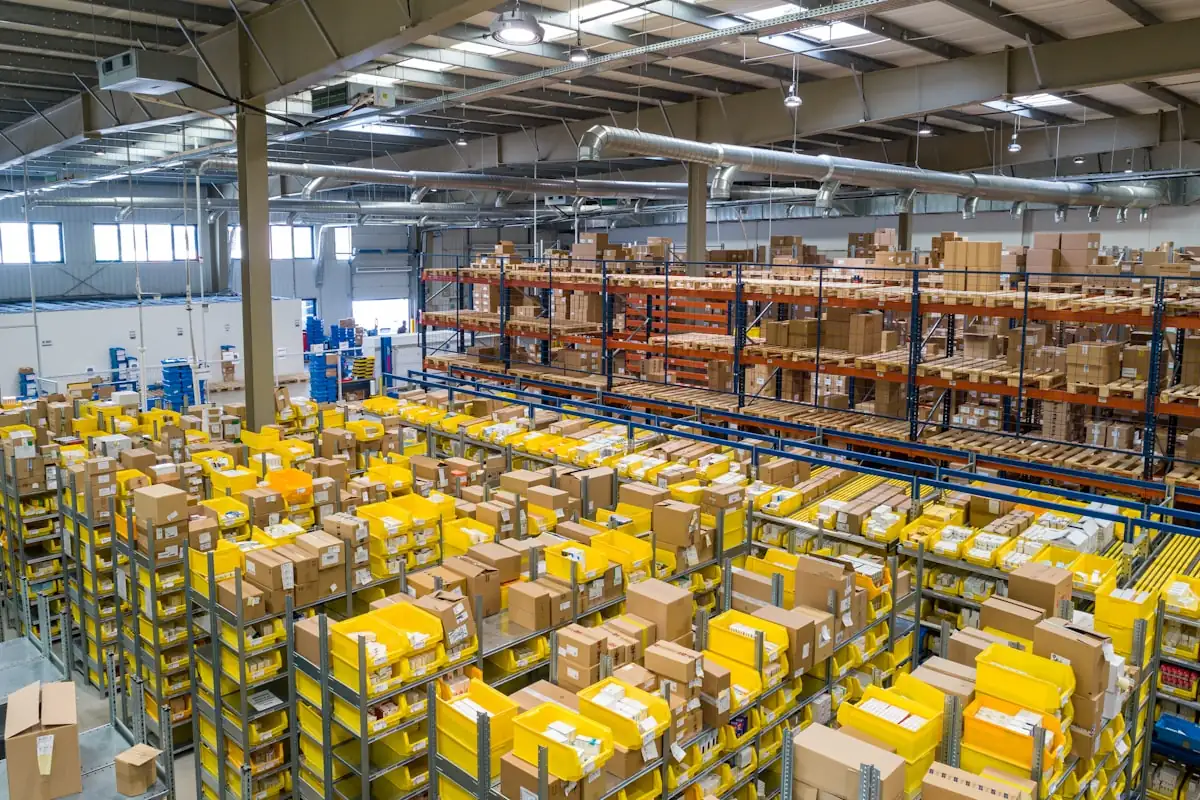
At 20 orders a day, you can be a little sloppy. You print as orders come in, you pack as you print, and somehow it all gets out by evening. At 100 orders a day, that same flow collapses. The fix is a real batch workflow — one that groups your day's Meesho orders into a single print run, a single pack run, and a single handover. This guide walks through how to batch process shipping labels for 100+ Meesho orders without losing either accuracy or sanity.
Why batching changes your whole dispatch day
Single-order processing has a hidden cost: every label print, every walk to the SKU shelf, every tape application is a context switch. Context switches cost 10–20 seconds each. Multiply by 100 orders and you have lost 30 minutes. Batching collapses those switches into a single block — one print run, one pick walk, one pack pass. Sellers who switch from single-order to batch processing typically reclaim 60–90 minutes a day.
The pre-batch setup (one-time, 15 minutes)
- Decide on your daily print cutoff time — 10 AM, 1 PM, and 4 PM are common.
- Standardise your SKU shelf layout. A picker should be able to grab one SKU's full quantity in a single arm sweep.
- Configure your thermal printer for the day's run: darkness 8–10, paper size 100 × 150 mm, actual size.
- Stock label rolls, packing material, and tape for at least 1.5× your usual daily volume.
- Bookmark the Ecom Insides cropper in your browser — that is the single tool the whole workflow depends on.
The five-step batch workflow
1. Pull the full daily manifest from Meesho
In Meesho Supplier Panel, go to Orders → Ready to Ship. Select all orders dispatched today and download the consolidated manifest PDF. For 100+ orders, this is one large PDF with two labels per A4 page. Do not break it into smaller downloads.
2. Crop, sort, and clean the PDF in one pass
Drop the manifest PDF into the cropper. Choose Meesho as the platform, pick 4×6 thermal output, and enable SKU sort. The tool will:
- Split the two-up A4 layout into individual 4×6 pages.
- Detect and remove any manifest or invoice-style pages.
- Group all labels for the same SKU together at the print order level.
- Output a single clean PDF ready for thermal printing.
The PDF never leaves your device — the entire crop happens inside your browser.
If you have multiple SKUs that vary in size, sort by SKU first, then by the size of the product. The picker walks the SKU shelf in a single loop and the packer packs the largest items first.
3. Run the batch print
Send the cropped PDF to your thermal printer. At 152 mm/s, a printer like the Xprinter XP-420B finishes 100 labels in about 90 seconds. The labels emerge already sorted by SKU.
4. The pick-and-pack pass
Once printing is complete, packers run a single pick-and-pack pass:
- Picker reads the top label's SKU, fetches the item, hands it to packer.
- Packer scans the SKU (or visually verifies), wraps, boxes, seals.
- Packer peels the printed label and applies it to the parcel.
- Parcel moves to the pickup-ready zone, label-up, by pin-code.
5. Courier handover and manifest reconciliation
Generate the courier manifest from Meesho. Count parcels yourself, write the total on a sticky note, and reconcile against the manifest before the pickup driver arrives. Insist on a signed copy of the manifest after pickup.
Common batch-printing failures and quick fixes
- Printer pauses mid-batch: usually a roll-out or a buffer overflow. Loading rolls fully before the run prevents both.
- Labels start to fade halfway through: the print head is overheating. Reduce darkness by 1 step.
- Sort order drifts between print and pack: use a "label-up, no flipping" rule at the dispatch bench.
- Wrong invoice page printed: the cropper missed an unusual invoice format. Re-run on the problematic file.
The wider pre-print workflow is covered in the Meesho bulk label printing guide and the fastest way to print 100 shipping labels. If you are still deciding which printer to buy, the thermal printer buying guide for India walks through the popular models.
The official Meesho Supplier Help Centre documents the manifest download and dispatch rules from the source.
Frequently asked questions
Can I batch process 100+ Meesho labels for free?
Yes. The Ecom Insides cropper batches, crops, and SKU-sorts the Meesho manifest entirely in your browser at no cost. There is no per-page limit and no watermark.
How long does the batch workflow take for 100 Meesho orders?
Roughly 90 seconds of printer time plus 30–45 minutes of pack time for a single packer. Total dispatch time falls from 3–4 hours (single-order flow) to under an hour.
Does SKU sort really make a difference at 100 orders?
Yes — the impact compounds with volume. At 100 orders across 15–20 SKUs, SKU sort can cut the picker walking distance by 60% and the mispick rate by half or more.
Can multiple packers work on the same batch in parallel?
Yes. Split the printed label stack by SKU or by 25-label chunks, with one picker per chunk. Make sure each chunk is bagged and labelled so they recombine cleanly.
What happens if Meesho releases a new label format mid-run?
Meesho occasionally adjusts the manifest layout. A well-built cropper detects the change automatically. If you see misaligned crops, refresh the tool — it auto-updates the crop boundaries.