Shipping Automation
The Fastest Way to Print 100 Shipping Labels (Step-by-Step)
By Nikunj Maniya · 28 April 2026 · Updated 9 June 2026 · 3 min read
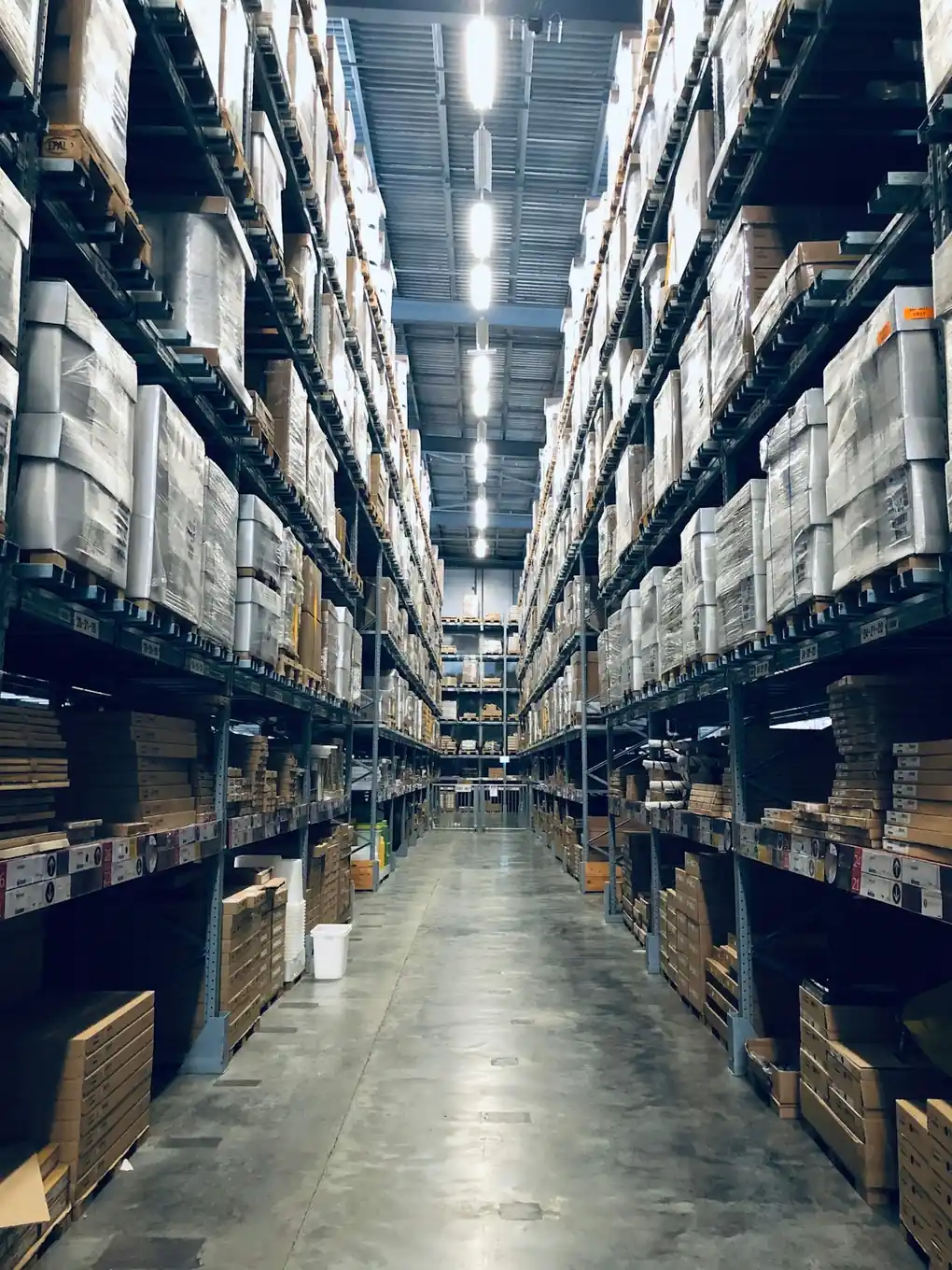
Speed in fulfillment compounds. Save 30 seconds per order and you save 14 hours per month at 100 orders/day. The seller who finishes their dispatch by 11am has 90 extra minutes for sourcing, marketing, and customer service. Here is the exact step-by-step we use to print 100 shipping labels in under 8 minutes.
Pre-flight (before the rush)
- Thermal printer plugged in, label roll loaded, calibrated.
- One desktop browser tab open at the Ecom Insides Shipping Label Cropper.
- Order picker positioned at warehouse station with bin labels visible.
- Print queue cleared (no stuck jobs).
Set up these things once, the night before. The morning rush is not the time to diagnose driver problems.
The 8-minute workflow
Minute 0–1: Download bulk manifest
Log into Amazon Seller Central / Meesho Supplier Panel / Flipkart Hub. Click "Print Labels" with all 100 orders selected. The PDF downloads to your computer.
Minute 1–2: Drop into the cropper
Drag the PDF into the Shipping Label Cropper. The platform is auto-detected. Select Thermal 4×6 layout (default). Enable SKU sorting and the order summary footer.
Minute 2–3: Generate
Click "Crop labels". On a typical laptop, processing 100 labels takes 3–5 seconds. The tool does cropping, invoice removal, SKU sorting, and summary page generation in parallel using Web Workers.
Minute 3–4: Pre-flight one label
Open the generated PDF, print only page 1 to your thermal printer. Confirm the barcode scans with your phone. If yes, proceed. If no, troubleshoot before printing 99 more defective labels.
Minute 4–6: Send full batch
Print all pages. A 6 ips thermal printer outputs 100 labels in about 90 seconds. The summary page prints last on plain A4 from your desktop printer.
Minute 6–8: Pick using the summary
The summary page lists every SKU with its order count. The picker walks the warehouse once per SKU instead of once per order. By minute 8, the labels are sorted and bundled with picked items, ready for packing.
Why this is fast
- Bulk download avoids 100 individual print clicks.
- Cropping in parallel uses your CPU efficiently — Web Workers split work across cores.
- SKU sort turns picking from O(n) walks to O(unique SKUs) walks.
- Summary page doubles as a verification checklist.
Where most sellers slow down
- Manual cropping: cropping each PDF page in Acrobat costs ~5 minutes per 100 orders.
- Switching tabs constantly: keep one tool, one workflow.
- Printing the invoice on thermal labels: wastes labels and time.
- Walking the warehouse 100 times: SKU sort solves this.
What this looks like at higher volume
The same workflow scales linearly to 500 orders. PDF generation in the cropper stays under 15 seconds even for 1,000 orders because the heavy work happens in a Web Worker thread, not on the main UI thread. Your printer becomes the bottleneck — not your computer. For Meesho-specific bulk tips, see our Meesho bulk label printing guide.
Frequently asked questions
Does the workflow change for marketplace returns or replacements?
Returns use a separate "RTV label" download flow on each platform. The cropping logic still applies, but the SKU sorting is less useful because returns are usually one-off.
Can I automate the download from Seller Central?
Selling Partner API (SP-API for Amazon, Open API for Meesho) supports automated label downloads. For most SMB sellers, the manual download every morning is fast enough.